1
Open RentalAnchor
Start from your phone and sign in to your account.

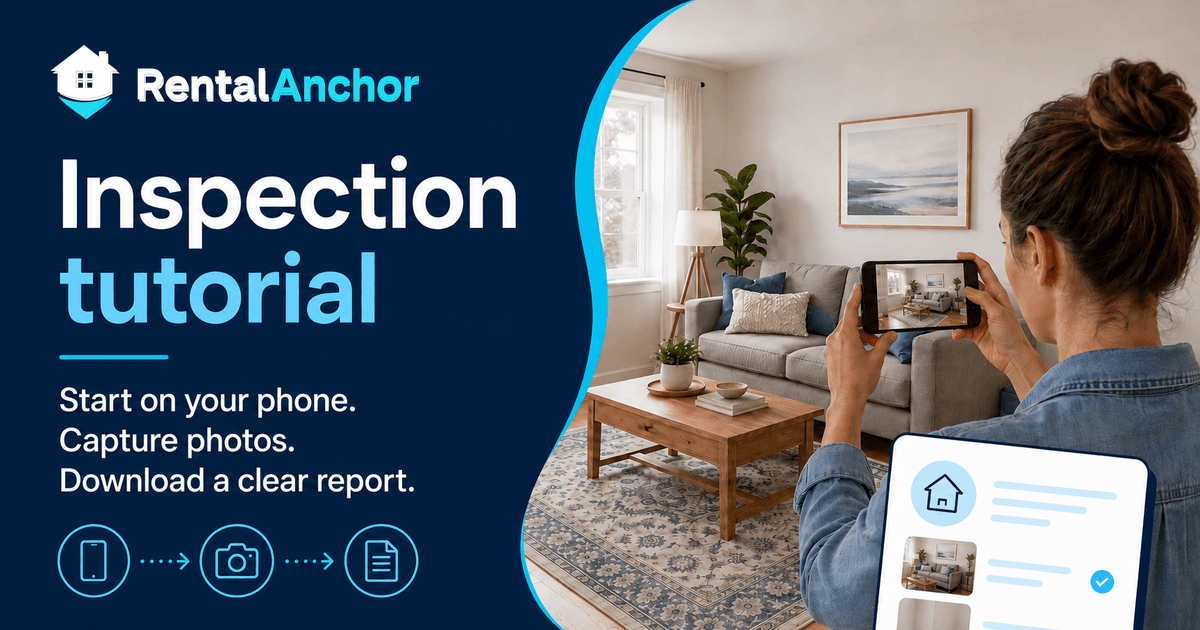
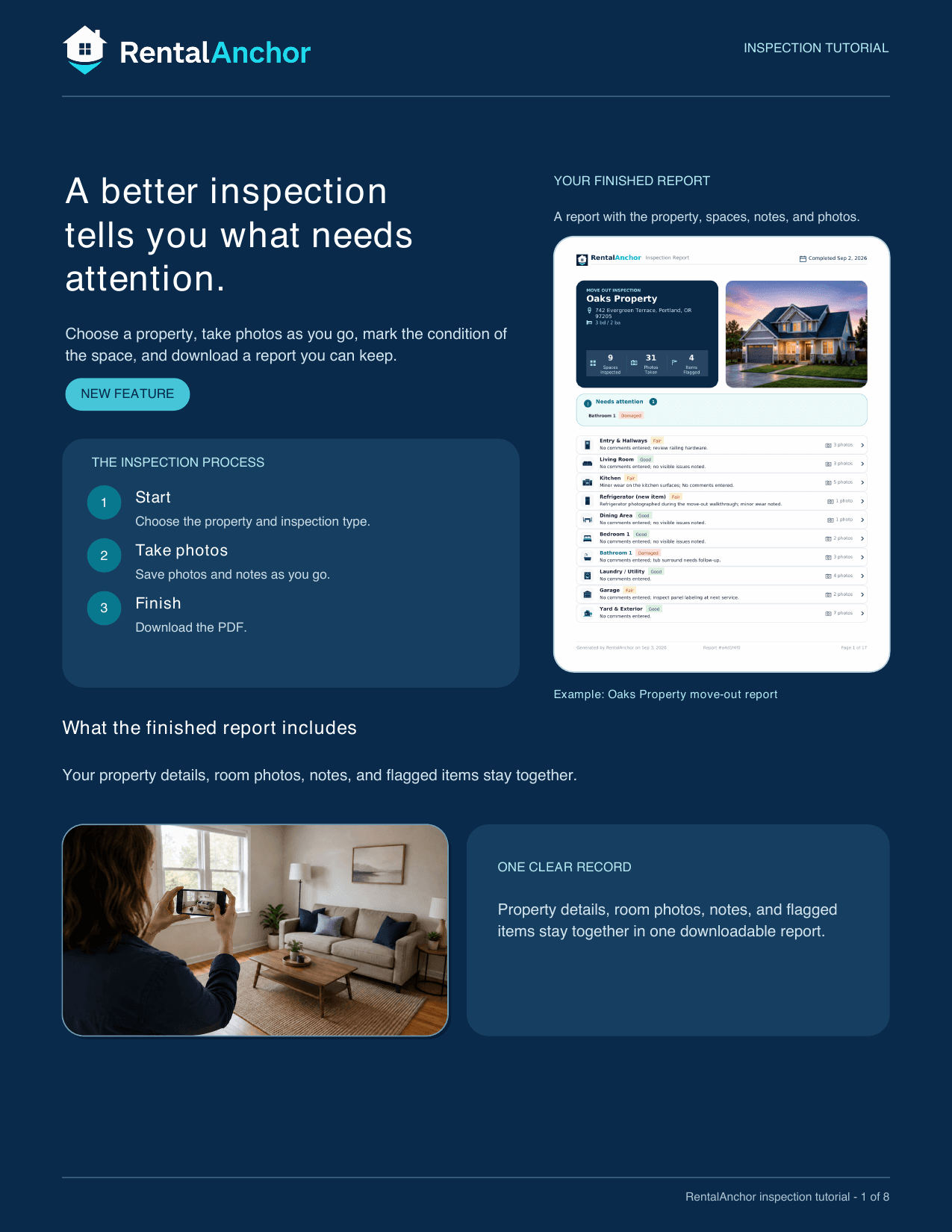
Start on your phone, take photos as you go, mark the condition of each space, and download a report you can keep.
No email or signup is needed to read or download the guide.
Start here
The inspection stays connected to the property you choose, so the right rooms, spaces, and items are ready for you.
Start from your phone and sign in to your account.
Open the property you want to walk through.
Open Inspections or the property’s Inspections card.
Step 1 · Start
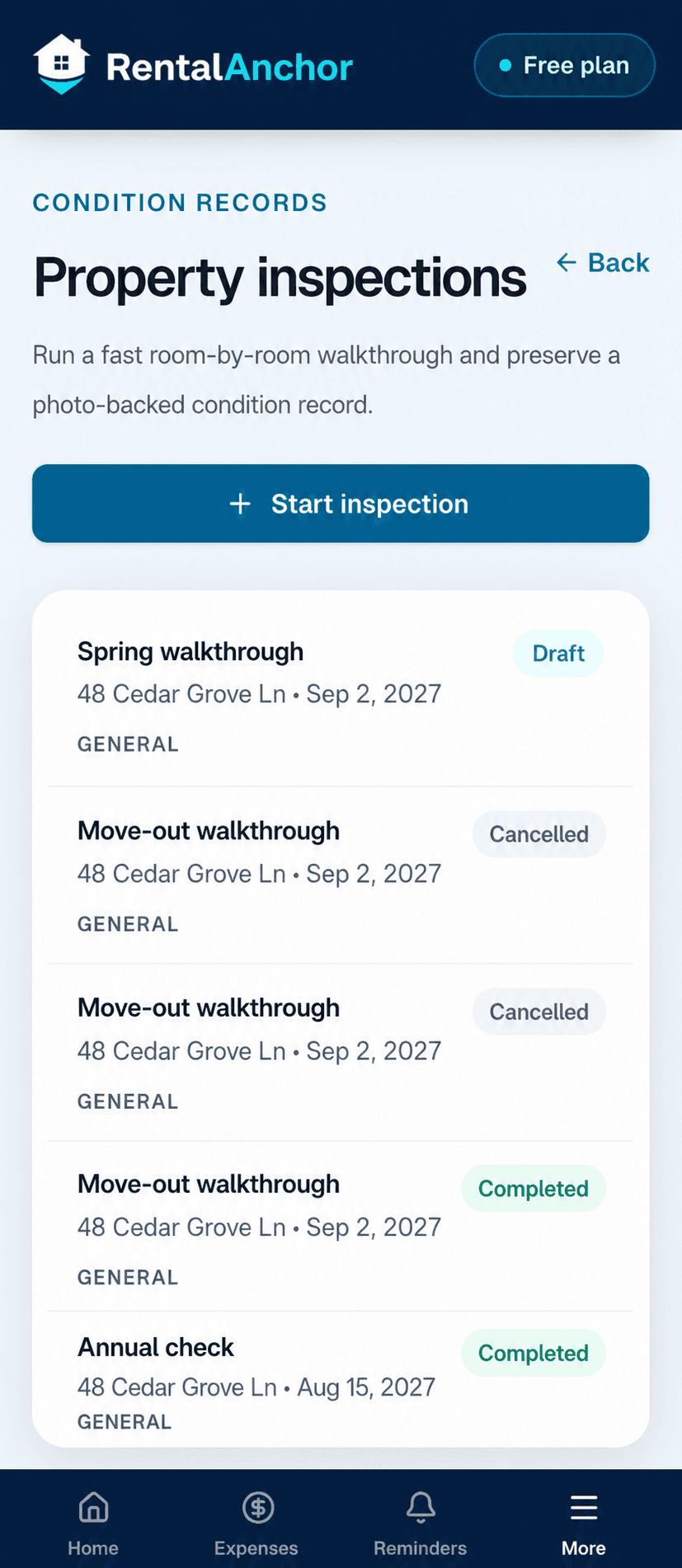
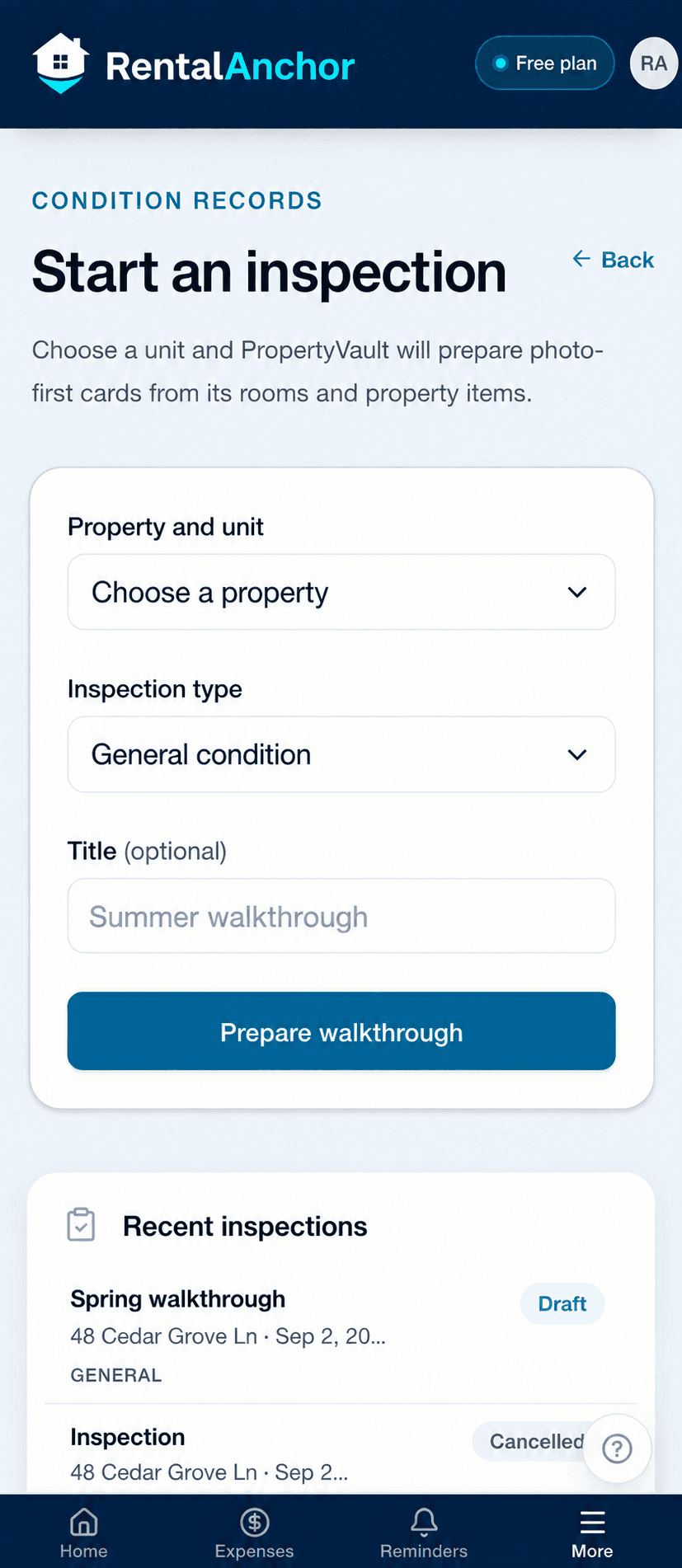
Open Dashboard, Inspections, or the property’s Inspections card. Choose the property, select the inspection type, and add a title if it helps you recognize the walkthrough later.
Learn about Property Inspections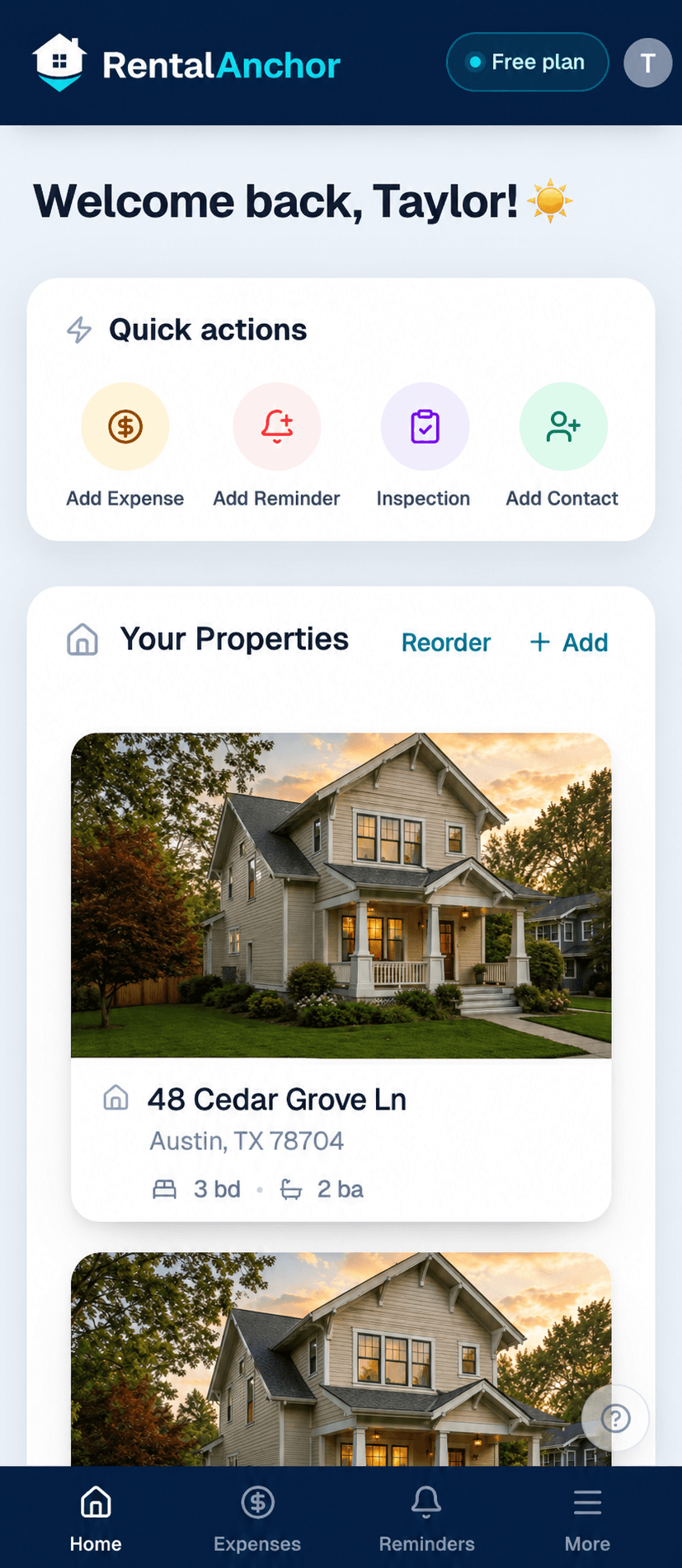
Step 2 · Choose
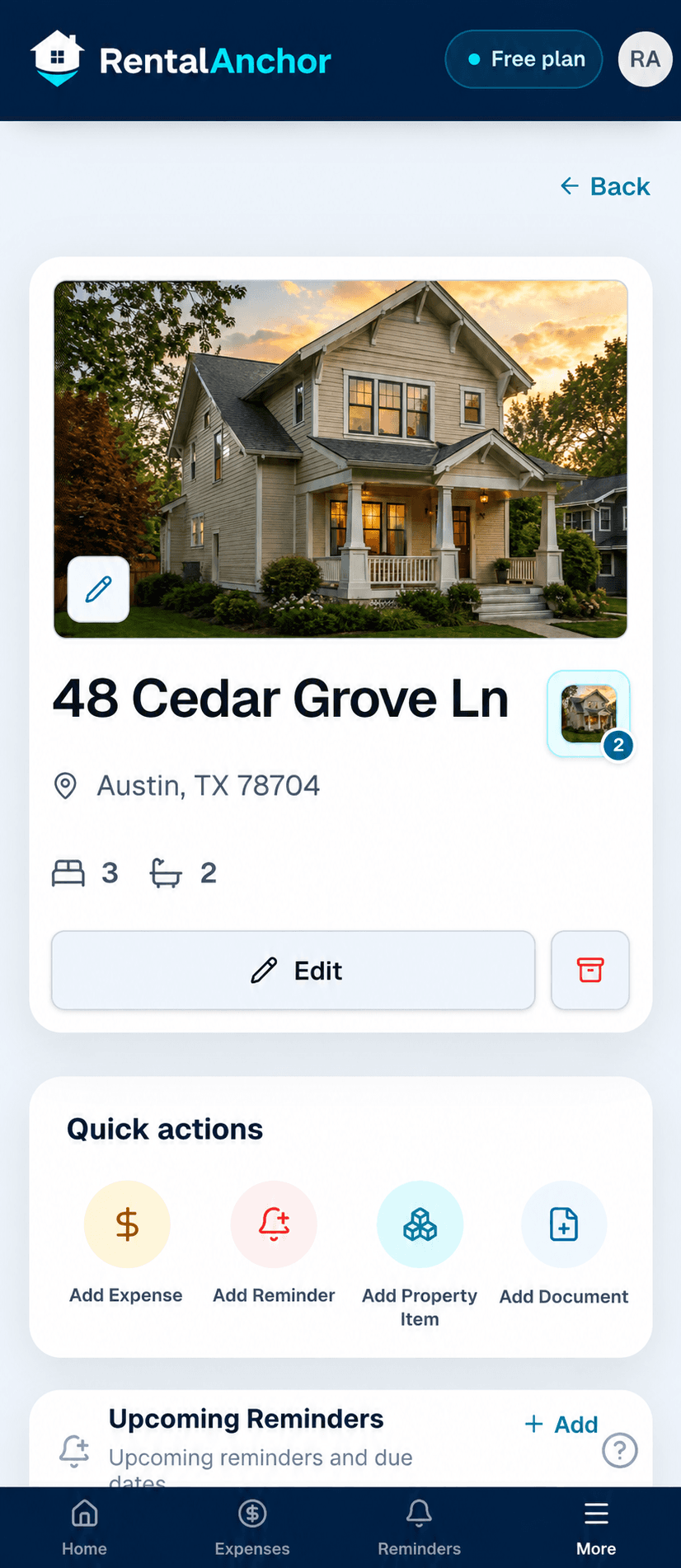
RentalAnchor uses the property’s connected rooms, spaces, and tracked items to build the inspection. That keeps the walkthrough organized and keeps the final report tied to the right address.
The home, unit, and address the inspection belongs to.
The rooms and property items you review during the walk.
Step 3 · Walk
Keep the process simple: choose a space, take photos, and mark the condition. Add a note when it helps explain what someone should notice.
Open a room or area, such as the kitchen or entryway.
Take clear photos of the space and anything that matters.
Choose a condition and add a note when it helps.
Step 4 · Finish
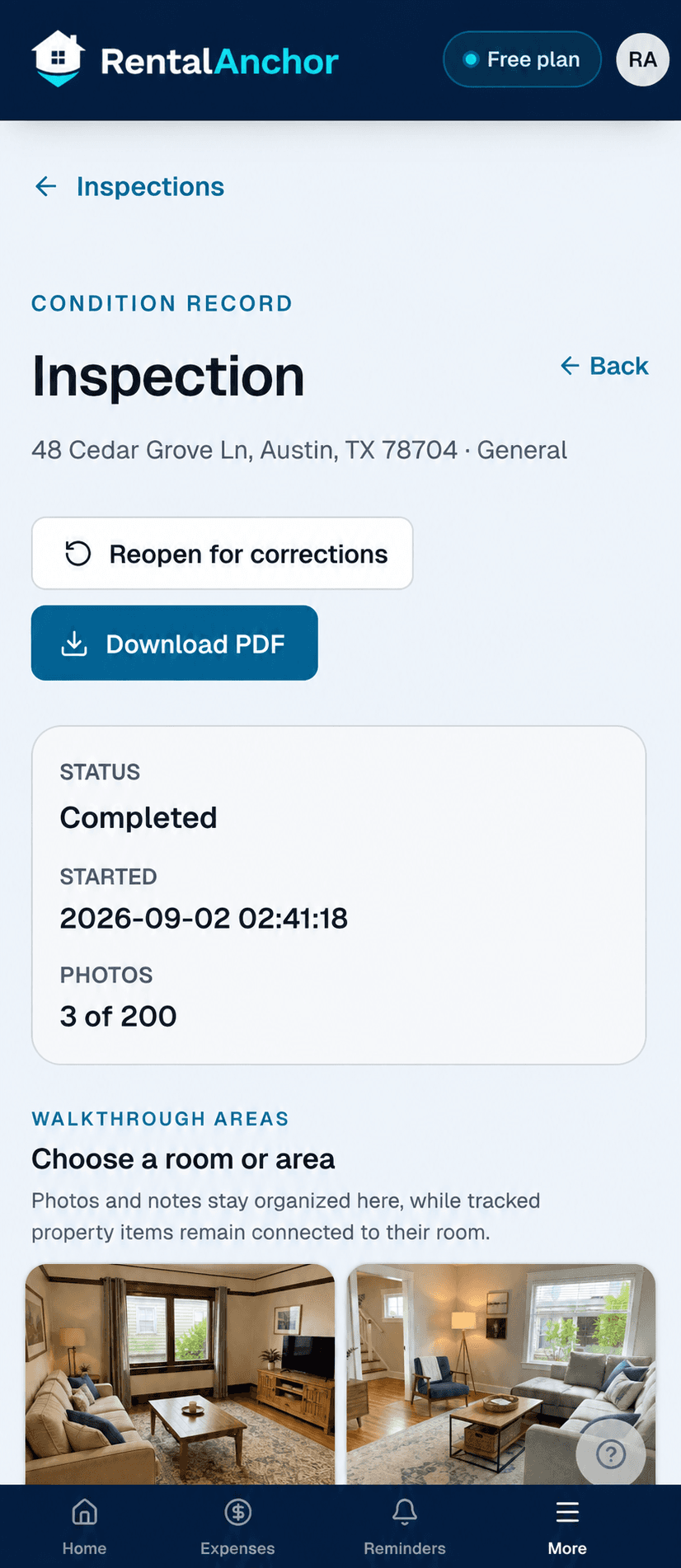
Review the status and spaces, finish the inspection, and download the PDF. The report keeps the property details, conditions, notes, flagged items, and photos together.
FAQ
Short answers for the first inspection.
From Dashboard, Inspections, or a property’s Inspections card. The walkthrough stays tied to the property you choose.
The rooms and tracked property items already connected to the property. You can add an inspection-only space or item when needed.
No. When you finish, choose the update or create option. You stay in control of what gets added to the property record.
Yes, reopen it, make the correction, and download the refreshed PDF.
They stay with the photo, space, or item where you entered them, so the report keeps the right context.
Open the completed inspection and tap Download PDF.
Want the guide as a file?
Save the PDF or send it to someone who is trying inspections for the first time.
Start with the property, capture what you see, and keep the finished report with your records.